Hey y’all, Suri here – just your average busy gal running this fashion (and now home tech?) blog. Picked up a Narwal robot vacuum and mop on sale thinking it’d save my sanity… but girl, these glitches had me stressed! Here’s the real tea on the headaches plus fixes that actually work.
I’ve compiled user feedback and my own troubleshooting notes into one master list, so you don’t have to suffer through the same headaches I did.
I. Core Issues (What’s Going Wrong?)
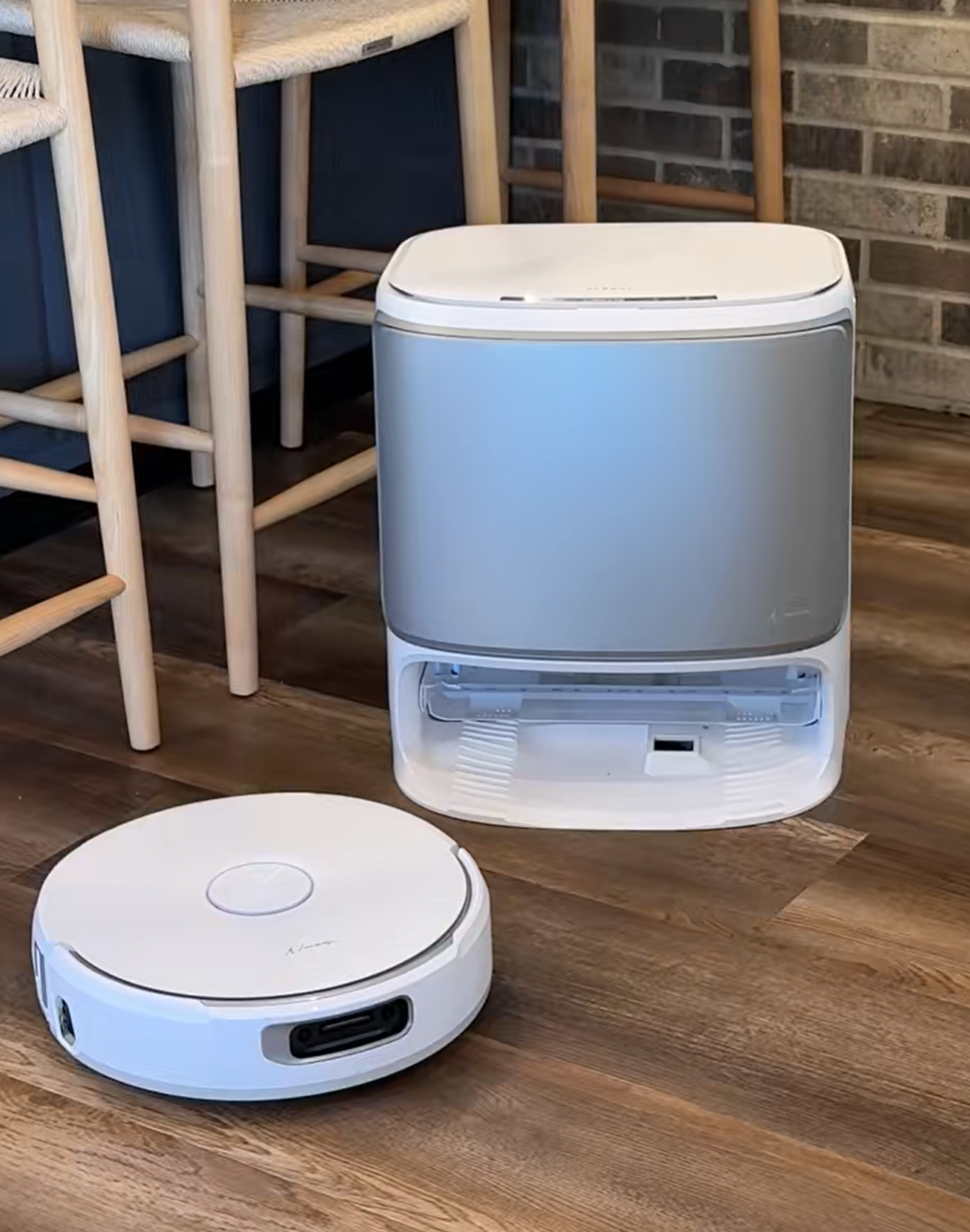
1. App & Mapping Drama
- Clunky Setup & Editing: Initial setup and basic functions (like dividing rooms) are difficult, even after updates. You can’t edit maps freely like in Dreame or Roborock.
- Multi-Floor Mess: If you have multiple maps, you can only select entire zones for cleaning, not single rooms.
- Room Division Limits: The app only splits rooms where the robot sees a wall. It can’t divide open spaces or intersections without physical walls.
2. Map & AI Recognition Failures
- Ghost Carpets: The map doesn’t auto-update (unlike previous Narwal models). If a hard floor is mistakenly identified as carpet, the error sticks forever.
- Abnormal Carpet Recognition: Bare floors are marked as rugs, messing up the mop/vacuum schedule. Trying to fix one mistake often conflicts with actual carpet areas.
- Poor Obstacle Avoidance: Despite having a camera, it randomly bumps into light-colored baseboards or tries to squeeze under furniture that’s too low, getting stuck.
3. Hardware & Service Headaches
- Dry Mopping: Even on “Maximum Humidity” mode, the mop pad remains barely damp.
- Sensor Defects: Wonky avoidance and misrecognition issues are often pointed to as a sensor hardware defect.
- Ineffective Support: Customer service often ignores detailed videos/photos and just repeats the generic advice to “set carpets to Ignore.”
II. Corresponding Solutions (The Fixes That Work)
1. Resolving App & Map Editing Issues
- Room Division Hack: Use physical obstacles (like boxes) to simulate a “temporary wall” during the initial mapping. After mapping, you can use that faux wall to divide the room.
- Handling Mistaken Carpet Tags:
- Single Mistake: Go into map editing and set the incorrectly marked area to “Ignore Carpet.” It will then clean like a hard floor and visually disappear from the map.
- Multiple Mistakes: Set the global default to “Ignore All Carpets.” Then, for your actual carpets, draw “No-Mopping Zones” or run the “Vacuum Only” mode separately. (The trade-off here is you can’t run “Vacuum + Mop” simultaneously.)
2. Resolving Obstacle Avoidance & Hardware Issues
- Basic Troubleshooting Steps:
- Restart the robot and the app.
- Wipe the sensor surfaces clean.
- Ensure the room has sufficient lighting (low light can mess up camera recognition).
- Avoiding Low Spaces: Manually draw “No-Entry Zones” on the map under any low furniture to prevent the robot from getting stuck or damaged.
3. Fixing Mopping Humidity & Sensor Faults
- Check Water System:
- Ensure the base station’s water tank isn’t empty.
- If the water tank is full but the mop is dry, remove the mop component and clean the water circuit for clogs.
- Demand Inspection/Replacement: If the dry mopping or collision issues persist after basic cleaning/restarting, push customer service hard to inspect for sensor faults. Refer to user experience that “sensor faults require replacement” to get a replacement for the defective parts or the entire unit.


